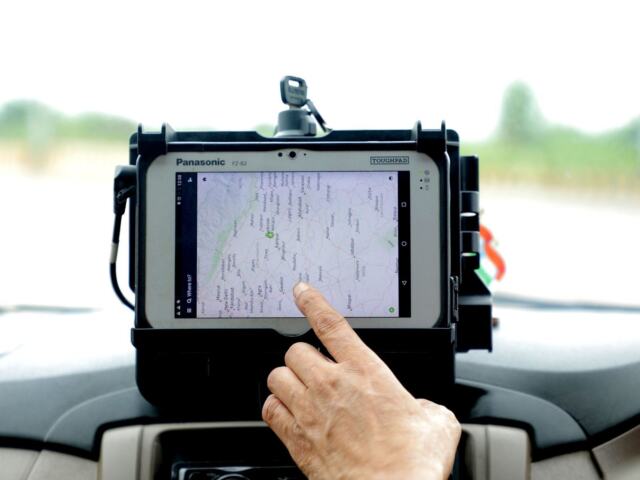
Starting with a new truck screen can feel stressful. Here is how to use an ELD: log in, check your status, review anything unassigned, annotate when needed, and know your roadside data transfer steps.
If you need the basics first, read what is an electronic logging device in plain terms: what is an electronic logging device explains the hardware and the rule behind it.
| Item | Value |
|---|---|
| Unassigned driving time at login | Driver must review it |
| Driver edits versus annotations | Edits do not overwrite the original record; annotations are notes |
| Roadside data transfer methods covered by FMCSA’s driver guide | Telematics (hardwired), Bluetooth and USB |
| Paper-log exception | Not more than 8 days out of every 30-day period |
| Previous days of records to present | Previous 7 days |
The figures come from the ELD requirements FAQ page (December 2017 version) and an EROAD summary of FMCSA’s driver guide. Rules and guidance can change, so check the source before you rely on them.
What does a normal day with an ELD look like?
An ELD is a routine tool, not a daily puzzle. Most of your day is a short loop of the same few actions, and the screen layout differs by brand.
- Log in with your own account at the start of the shift, so driving is recorded under your name.
- Look at any unassigned driving time the device shows and deal with it before you roll.
- Confirm your duty status.
- Change status yourself when you stop: on duty not driving, sleeper berth or off duty.
- Check your remaining hours during the day, then log out at the end of your shift.
Your carrier picks the ELD brand and configures your account. Ask for the vendor’s instruction sheet and keep it in the cab, because the menus are not the same from one device to the next.
How do you handle unassigned driving time?
Unassigned driving happens when the truck moved and nobody was logged in. The ELD requirements FAQ is direct: “A driver must review any unassigned driving time when he or she logs into the ELD.”
The review step matters because a mistake here can follow you. If the time is yours, claim it. If it belongs to someone else, such as a mechanic or a co-driver who forgot to log in, reject it and let your carrier sort it out.
If you need to explain what happened with a record, the FAQ confirms a driver can annotate it, so add a short note rather than leaving the question open.
Edits, annotations and special driving categories
Mistakes and odd situations come up. The same FAQ separates two ideas: “An edit is a change to an electronic logging device (ELD) record that does not overwrite the original record, while an annotation is a note related to a record, update, or edit that a driver or authorized support personnel may input to the ELD.”
The answer to whether you can annotate a record is short: “Yes.” Use a short, plain note that explains what happened, for example why you changed a status.
Special driving categories, such as personal conveyance and yard moves, are set by your carrier. If your account is not set up for them, the FAQ says: “If the motor carrier does not configure the driver user account to authorize special driving categories, then the driver must annotate the beginning and end of the applicable special driving category.”

Ask your carrier what it allows before you use these categories. Misusing them can look like hiding driving time, and it also affects how your hours are counted under the hours of service rules.
What should you do at a roadside inspection?
An officer may ask to see your records. A summary of FMCSA’s guide says it “walks drivers through a step-by-step process on how to easily transfer their hours-of-service logbook data to safety officials during a roadside inspection.”
The same summary says: “Instructions and troubleshooting are presented for each data transfer method: telematics (hardwired), Bluetooth and USB connections.” Your device will use one of these, so find out which before you need it.
- Know where your roadside inspection mode sits in the menu.
- Keep the instruction sheet and a blank supply of paper log sheets in the cab.
- Practise the transfer once while parked, not for the first time with an officer waiting.
- Stay calm, hand over the device or follow the officer’s request, and ask if you are unsure what is wanted.
The FAQ also says drivers can present their previous 7 days of records through several routes. That list includes paper records, a printout from an ELD, or a display from a device with logging software and electronic signature capability.
Habits that keep your logs clean
Good habits take little time and save arguments later. Think of the ELD as a record you are building as you go, not a chore for the end of the day.
- Change status when it changes. Do not wait until the end of the shift to remember when you stopped.
- Read your carrier’s policy on special driving categories and follow it each time.
- Look at your log summary at least once during the day, so a wrong status shows up early.
- Report any odd screen message, lost connection or error to your carrier when you see it.
- Keep the device powered, secured and connected as the vendor instructs.
New drivers often worry about pressing the wrong button. Most devices let you correct a status and add a note, and the record keeps the original, so a slip is fixable if you speak up and explain it clearly.
If you drive for more than one carrier or switch trucks, learn each device before you leave the yard. Ask a dispatcher or safety manager for a short walk-through, because every vendor lays out its screens differently. A few minutes of practice at the start is far easier than learning on the road under time pressure.
Remember that the ELD records what the truck does and what you tell it. It does not know your plans, so your own status changes and notes are what make the record accurate and defensible.
When does the ELD not apply, and what if it fails?
Some drivers are outside the mandate. The FAQ lists, among others, “Drivers who use paper RODS for not more than 8 days out of every 30-day period” and drivers of vehicles manufactured before 2000. The same FAQ says drivers can present their previous 7 days of records on paper.
If your device stops working, do not guess. Follow the steps in eld malfunction what to do, and tell your carrier.
This is general education, not legal advice. Your carrier’s policy and your device’s instructions come first.
Frequently asked questions
Do I log in every day?
Show answer
Yes. Log in under your own account at the start of each shift so that driving is recorded to you, and log out when you finish.
Can I add a note to my log?
Show answer
Yes. The FAQ answers “Yes” to whether a driver can annotate an ELD record. Keep the note short and factual.
What do I do with unassigned driving time?
Show answer
Review it when you log in. Accept it if it is yours, and reject it if it is not, so your carrier can follow up.
How do I send logs to an officer?
Show answer
It depends on the device. FMCSA’s guide covers telematics, Bluetooth and USB transfers, so check your instruction sheet for the exact steps.